Saturday, October 13, 2012

How to Setup WSUS on 2003/2008/2008 R2 Server
Hello all,
Here's a step by step user guide how to setup WSUS for your network! Firstly you need a server with either Windows Server 2003 SP2, Windows Server 2008 or Windows Server 2008 R2.
2003 Server
Install the Microsoft Report Viewer Redistributable 2008 (2MB)
You also need (as a minimum) .NET Framework 2.0 installed (22MB)
Download WSUS 3.0 SP2 (80MB x86)
Whilst these are downloading, add the IIS role. Navigate to Control Panel > Add/Remove Programs > Add/Remove Windows Components. Double click ‘Application Server’ then tick to enable Internet Information Services (IIS). You may need your Windows Server 2003 disc to install all required components.
When the installation window appears, choose:
Full server installation including Administrative Console > Next
Accept the Terms > Next
WSUS Setup will choose the volume with the most space. You can change this to D:\WSUS or E:\WSUS as required > Next
Use the built in Windows Internal Database > Next
Use the existing IIS Default Web site (Recommended) > Next
Note: If you do not choose the Default IIS Web site, you’ll need to specify the Microsoft update service location policy differently as follows (for example):
Specify intranet Microsoft update service location – Enabled
http://SERVERNAME:8080
http://SERVERNAME:8080
When setup completes, cancel the Configuration Wizard that appears. Open WSUS by navigating to Administrative Tools > Windows Server Update Services
On the left, expand SERVERNAME > Computers > All Computers. You can create computer groups, such as Workstations, Servers and Notebooks. When your workstations report to WSUS, they’ll appear in the All Computers group, but can be moved as required.
Click on Options > Source and Proxy Server > Proxy Server (tab). Enter your proxy and port, then click OK.
Products and Classifications. By default few products are displayed, but don’t worry. Choose Windows Server 2003 as a minimum (presuming you have a 2003 Server in your domain). Click the Classifications tab and enable:
-Critical Updates
-Definition Updates
-Security Updates
-Update Rollups
-Updates, then click OK.
Update Files and Languages > Update Languages (tab) > Download updates only in these languages. Tick English, then click OK.
Synchronization Schedule > Synchronize Automatically. Specify 04:00:00 and 1 Synchronizations per day. Click OK.
Automatic Approvals. Tick to enable Default Automatic Approval Rule. Just below this, click the Critical Updates link. Tick to enable
-Critical Updates
-Definition Updates
-Security Updates
-Update Rollups
-Updates, click OK, and OK.
E-Mail Notifications. Tick to enable Send e-mail notification when new updates are synchronized. Enter your e-mail address.
Tick to enable Send Status Reports. Specify:
Frequency: Weekly
Send reports at: 11:00:00
Recipients: Enter your e-mail address
Click the E-mail Server tab. Specify your SMTP server. If you do not know this, enquire with your LA or ISP.
Sender name: WSUS
E-mail address: WSUS@yourdomain.com then click OK.
Click Synchronizations (near the top left), then near the top right click Synchronize Now. Wait for the synchronization process to complete, then return back to Options > Products and Classifications. This will now be fully populated. Click additional products such as Windows 7, Windows Server 2008 R2 and Office 2010. Click OK, return back to Synchronizations then click Synchronize Now.
To enable your workstations to report to your WSUS server, navigate to Computer Config > Admin Templates > Windows Components > Windows Update
Specify the following policies:
Do not display ‘Install Updates and Shutdown’ option in Shutdown Windows dialogue box – Not Configured
Do not adjust default option to ‘Install Updates and Shutdown’ in Shutdown Windows dialogue box – Not Configured
Enabling Windows Update Power Management to automatically wake up the system to install scheduled updates – Not Configured
Configure Automatic Updates – Enabled
4 – Auto download and schedule the install
0 – Everyday
11:00
Specify intranet Microsoft update service location – Enabled
http://SERVERNAME
http://SERVERNAME
Automatic Updates detection frequency – Enabled
1 Hour(s)
Allow non-administrators to receive update notifications – Disabled
Turn on Software Notifications – Not Configured
Allow Automatic Updates immediate installation – Enabled
Turn on recommended updates via Automatic Updates – Disabled
No auto-restart with logged on users for scheduled automatic updates installations – Enabled
Re-prompt for restart with scheduled installations – Not Configured
Delay restart for scheduled installations – Not Configured
Reschedule Automatic Updates scheduled installations – Enabled
15 Minutes
Enable client-side targeting – Not Configured
Allow signed updates from an Intranet Microsoft Update service location – Disabled
Your workstations will then start reporting to your WSUS console. WSUS setup complete!
src: http://www.edugeek.net/forums/windows-server-2008-r2/80624-how-setup-wsus-2003-2008-2008-r2-server.html
Here's a step by step user guide how to setup WSUS for your network! Firstly you need a server with either Windows Server 2003 SP2, Windows Server 2008 or Windows Server 2008 R2.
2003 Server
Install the Microsoft Report Viewer Redistributable 2008 (2MB)
You also need (as a minimum) .NET Framework 2.0 installed (22MB)
Download WSUS 3.0 SP2 (80MB x86)
Whilst these are downloading, add the IIS role. Navigate to Control Panel > Add/Remove Programs > Add/Remove Windows Components. Double click ‘Application Server’ then tick to enable Internet Information Services (IIS). You may need your Windows Server 2003 disc to install all required components.
When the installation window appears, choose:
Full server installation including Administrative Console > Next
Accept the Terms > Next
WSUS Setup will choose the volume with the most space. You can change this to D:\WSUS or E:\WSUS as required > Next
Use the built in Windows Internal Database > Next
Use the existing IIS Default Web site (Recommended) > Next
Note: If you do not choose the Default IIS Web site, you’ll need to specify the Microsoft update service location policy differently as follows (for example):
Specify intranet Microsoft update service location – Enabled
http://SERVERNAME:8080
http://SERVERNAME:8080
When setup completes, cancel the Configuration Wizard that appears. Open WSUS by navigating to Administrative Tools > Windows Server Update Services
On the left, expand SERVERNAME > Computers > All Computers. You can create computer groups, such as Workstations, Servers and Notebooks. When your workstations report to WSUS, they’ll appear in the All Computers group, but can be moved as required.
Click on Options > Source and Proxy Server > Proxy Server (tab). Enter your proxy and port, then click OK.
Products and Classifications. By default few products are displayed, but don’t worry. Choose Windows Server 2003 as a minimum (presuming you have a 2003 Server in your domain). Click the Classifications tab and enable:
-Critical Updates
-Definition Updates
-Security Updates
-Update Rollups
-Updates, then click OK.
Update Files and Languages > Update Languages (tab) > Download updates only in these languages. Tick English, then click OK.
Synchronization Schedule > Synchronize Automatically. Specify 04:00:00 and 1 Synchronizations per day. Click OK.
Automatic Approvals. Tick to enable Default Automatic Approval Rule. Just below this, click the Critical Updates link. Tick to enable
-Critical Updates
-Definition Updates
-Security Updates
-Update Rollups
-Updates, click OK, and OK.
E-Mail Notifications. Tick to enable Send e-mail notification when new updates are synchronized. Enter your e-mail address.
Tick to enable Send Status Reports. Specify:
Frequency: Weekly
Send reports at: 11:00:00
Recipients: Enter your e-mail address
Click the E-mail Server tab. Specify your SMTP server. If you do not know this, enquire with your LA or ISP.
Sender name: WSUS
E-mail address: WSUS@yourdomain.com then click OK.
Click Synchronizations (near the top left), then near the top right click Synchronize Now. Wait for the synchronization process to complete, then return back to Options > Products and Classifications. This will now be fully populated. Click additional products such as Windows 7, Windows Server 2008 R2 and Office 2010. Click OK, return back to Synchronizations then click Synchronize Now.
To enable your workstations to report to your WSUS server, navigate to Computer Config > Admin Templates > Windows Components > Windows Update
Specify the following policies:
Do not display ‘Install Updates and Shutdown’ option in Shutdown Windows dialogue box – Not Configured
Do not adjust default option to ‘Install Updates and Shutdown’ in Shutdown Windows dialogue box – Not Configured
Enabling Windows Update Power Management to automatically wake up the system to install scheduled updates – Not Configured
Configure Automatic Updates – Enabled
4 – Auto download and schedule the install
0 – Everyday
11:00
Specify intranet Microsoft update service location – Enabled
http://SERVERNAME
http://SERVERNAME
Automatic Updates detection frequency – Enabled
1 Hour(s)
Allow non-administrators to receive update notifications – Disabled
Turn on Software Notifications – Not Configured
Allow Automatic Updates immediate installation – Enabled
Turn on recommended updates via Automatic Updates – Disabled
No auto-restart with logged on users for scheduled automatic updates installations – Enabled
Re-prompt for restart with scheduled installations – Not Configured
Delay restart for scheduled installations – Not Configured
Reschedule Automatic Updates scheduled installations – Enabled
15 Minutes
Enable client-side targeting – Not Configured
Allow signed updates from an Intranet Microsoft Update service location – Disabled
Your workstations will then start reporting to your WSUS console. WSUS setup complete!
src: http://www.edugeek.net/forums/windows-server-2008-r2/80624-how-setup-wsus-2003-2008-2008-r2-server.html
Setting up WSUS on server 2008 and enable GPO's for client machines
I.
Setup WSUS on server 2008. Follow the wizard. The best pratice is to
set WSUS to update from the Microsoft web site, NOT download files to
the server locally. This will help save space on the disk. Once the
wizard is complete, run the first syncronization. During syncronization
you can create computer groups.
WSUS Console -> Computers -> All Computers (right click - create new group)
II. Create GPO's to link the client machines to WSUS, never put the computer to sleep and specify which computer group they should belong to.
Set the computer to automaticall update from the WSUS server and report the WSUS Console:
Computer Configuration -> Administrative Templates -> Windows Components -> Windows Update
Enable/Configure the properties of the following:
1. Configure Automatic Updates - Set clients to search for udpates daily at specified time (usually late at night)
2. Specify intranet Microsoft update service location - set both the intranet update service for detecting updates and statistics server to http://servername
3. Enable client-side targeting - Specify which computer group you would like the computer to be placed into WSUS Console*
Set the computer to never go to sleep so automatic updates can be downloaded and installed:
Computer Configuration -> Administrative Templates -> System -> Power Management -> Hard Disk Settings
Enable/Configure the properties of the following:
1. Turn Off the Hard Disk (Plugged In) - Set to zero
2. Turn Off the Hard Disk (On Battery) - Set to zero
*Create computers groups in the WSUS Console before setting up GPO
The client computers usually require a reboot before reporting back to the WSUS server.
WSUS Console -> Computers -> All Computers (right click - create new group)
II. Create GPO's to link the client machines to WSUS, never put the computer to sleep and specify which computer group they should belong to.
Set the computer to automaticall update from the WSUS server and report the WSUS Console:
Computer Configuration -> Administrative Templates -> Windows Components -> Windows Update
Enable/Configure the properties of the following:
1. Configure Automatic Updates - Set clients to search for udpates daily at specified time (usually late at night)
2. Specify intranet Microsoft update service location - set both the intranet update service for detecting updates and statistics server to http://servername
3. Enable client-side targeting - Specify which computer group you would like the computer to be placed into WSUS Console*
Set the computer to never go to sleep so automatic updates can be downloaded and installed:
Computer Configuration -> Administrative Templates -> System -> Power Management -> Hard Disk Settings
Enable/Configure the properties of the following:
1. Turn Off the Hard Disk (Plugged In) - Set to zero
2. Turn Off the Hard Disk (On Battery) - Set to zero
*Create computers groups in the WSUS Console before setting up GPO
The client computers usually require a reboot before reporting back to the WSUS server.
Monday, October 8, 2012
maping a windows drive on a mac using command-line
use: mount_smbfs
mount_smbfs -W [domain] //macuser:[username]@[server]/[share]
mount_smbfs -W [domain] //macuser:[username]@[server]/[share]
Do I absolutely have to run DHCP on SBS 2008?
When running the Configure E-Mail and Internet Connection wizard in
SBS 2003, you had the option to run DHCP services on the SBS server, or
leave it on the router within the network. There was no guidance one
way or another, it was a choice you had to make to complete the wizard.
With SBS 2008, we provide guidance.
The guidance is that you should run DHCP on the server. Why?
IMPORTANT: Please do not call Microsoft support with an incorrectly configured LAN DNS. Make sure you make the SBS’s Internal IP address the primary DNS in your 3rd party DHCP server configuration.
Finally, the server is still going to alert you that DHCP services aren’t running, so to fix this:
 Now
DHCP services is no longer running on the server, and SBS will be fine
with that. As a final note, please only do this if you have no other
way around it, and if you’re familiar with your router UI to set it up
correctly. If not, just disable DHCP on your router, and we’ll take
care of the rest!
Now
DHCP services is no longer running on the server, and SBS will be fine
with that. As a final note, please only do this if you have no other
way around it, and if you’re familiar with your router UI to set it up
correctly. If not, just disable DHCP on your router, and we’ll take
care of the rest!
src: http://sbs.seandaniel.com/2008/10/do-i-absolutely-have-to-run-dhcp-on-sbs.html
With SBS 2008, we provide guidance.
The guidance is that you should run DHCP on the server. Why?
- Microsoft builds, and has been building a really high quality DHCP server built into Windows Server since Windows NT 4. Why not get one of the highest quality DHCP servers on the market for your network?
- The SBS team can ensure your DHCP server is set up correctly on SBS, making sure there are no duplicate IP addresses, and that the exclusion range is set up correctly for the server’s IP address
- If you feel comfortable in the DHCP management UI, you can set up reservations to make sure the same clients get the same IP address. This is handy for printers, or other things on your network that may act like servers, but you don’t want to manage the static IP address
- If you’re logging in remotely, you can see which clients are online by which ones have IP addresses in the DHCP management console. You can also see the clients IP address right in the console, so it makes it easy to find clients on the network, especially if you are remote.
- DHCP uses limited resources and has essentially no impact on the server’s performance
- Close the Windows SBS Console, and cancel the Connect to the Internet Wizard if it’s running
- Click Start and go to All Programs and expand Windows Small Business Server
- Click on Windows SBS Console (Advanced Mode)
- On the Network tab, select the Connectivity sub-tab
- Click on Start DHCP (
 ).
). - At this point, the DHCP services will be forced to start. Since you have another DHCP server running on the network, the DHCP service will stop itself, and log an event in the Event Log about how it can’t start because there is another non-authorized DHCP server on the network. This is ok.
- Immediately click the same button, this time called Disable DHCP (
 ).
).


IMPORTANT: Please do not call Microsoft support with an incorrectly configured LAN DNS. Make sure you make the SBS’s Internal IP address the primary DNS in your 3rd party DHCP server configuration.
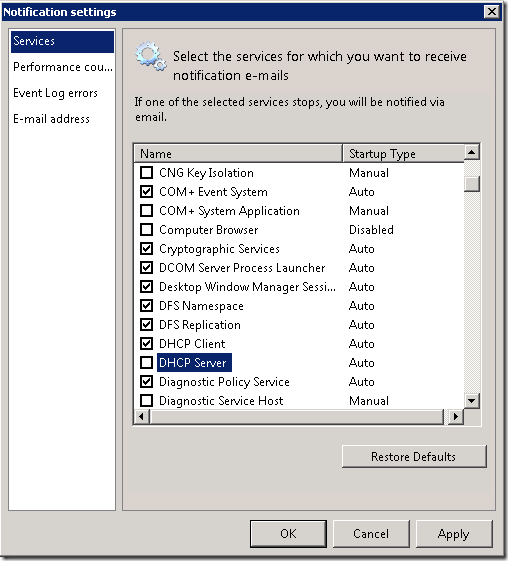
Finally, the server is still going to alert you that DHCP services aren’t running, so to fix this:
- Flip on over to the Computers sub-tab on the Network tab.
- On the right, click on View Notification Settings.
- Uncheck the DHCP Server notification, and click OK.

src: http://sbs.seandaniel.com/2008/10/do-i-absolutely-have-to-run-dhcp-on-sbs.html
Tuesday, October 2, 2012
One or more RD Licensing certificates has expired. Please re-register.
We are having odd access issues in RD Web Access. Only impacts
non-domain admins. In troubleshooting that issue I observed event ID
46, source TerminalServices-Licensing "One or more RD Licensing
certificates has expired. Please re-register."
The certificate is good till December 2013. I've searched similar
issues but no exact match to mine. Server 2008 R2 std. How do I
resolve this? Thanks.
*****************************************************************
Hi,
Are you running Service Pack 1 on your RD Licensing server?
Please open RD Licensing Manager (licmgr.exe), right-click on the server name and choose Advanced -- Reactivate Server. Reactivating should resolve the issue with the event id 46.
I do not know if your RD Web Access issue is related to your RD Licensing problem or not since you have not described that. If the RDWeb issue is not fixed then you may want to ask a separate question detailing your specific problems with RDWeb.
Thanks.
******************************************************************
Thanks, TP! Your solution works for me!
See Ya!
Van
*****************************************************************
Hi,
Are you running Service Pack 1 on your RD Licensing server?
Please open RD Licensing Manager (licmgr.exe), right-click on the server name and choose Advanced -- Reactivate Server. Reactivating should resolve the issue with the event id 46.
I do not know if your RD Web Access issue is related to your RD Licensing problem or not since you have not described that. If the RDWeb issue is not fixed then you may want to ask a separate question detailing your specific problems with RDWeb.
Thanks.
******************************************************************
Thanks, TP! Your solution works for me!
See Ya!
Van
Subscribe to:
Comments (Atom)